


Managing Contacts and Notifications in SmartHub
How to manage your contacts and sign up for text and email notifications
DESKTOP instructions
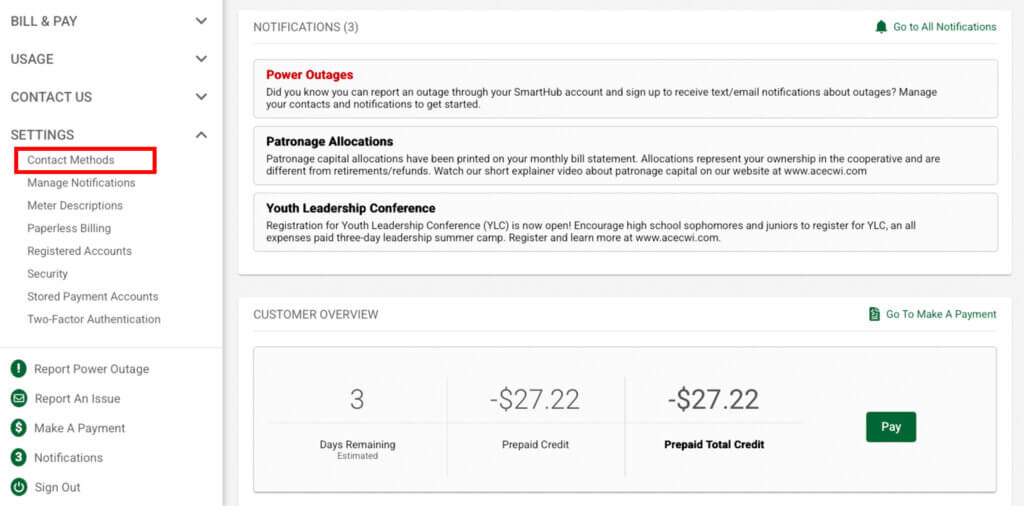
1. Log in to your SmartHub account through the a desktop computer or laptop. Click the Settings drop down along the left navigation pane. Then click Contact Methods.
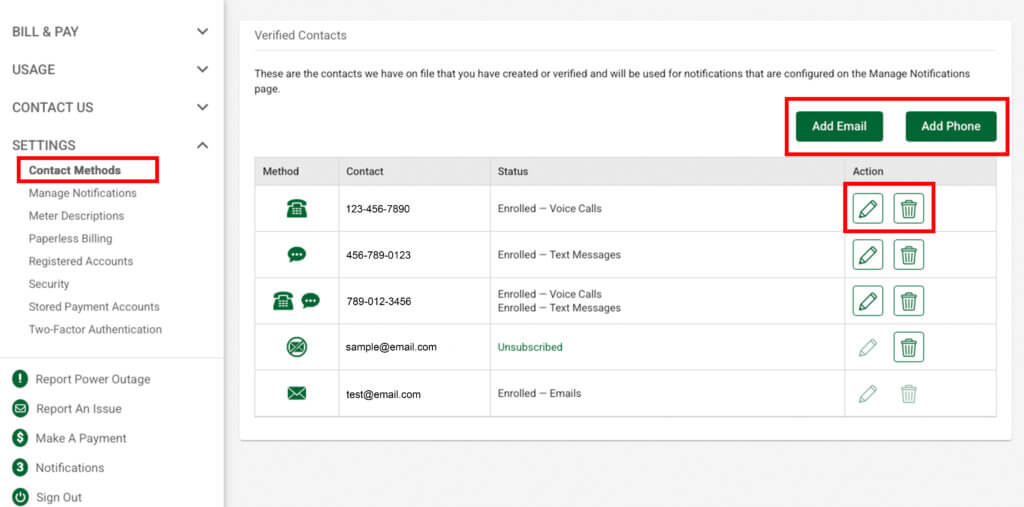
2. This screen will show you the phone and email contacts we have for your account. Click the Add Email or Add Phone buttons to add a new contact. To edit a contact, click the pencil icon. To delete a contact, click the trash can icon.
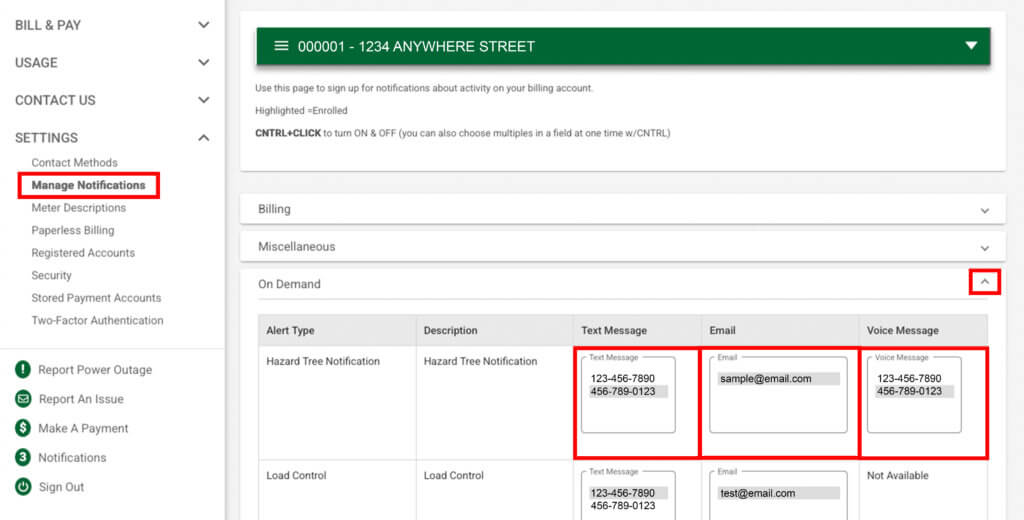
3. Click Manage Notifications under Settings. After adding your contact methods, check out the variety of text, voice, email notifications you can receive. For desktop, hold the Control button on your keyboard and click on your contact types to enroll. Then scroll to the bottom and click Save.
Click the drop down arrow for each category to view the different notification types. To sign up to receive peak alert/load control notifications, click the On Demand drop down arrow.
Mobile app instructions
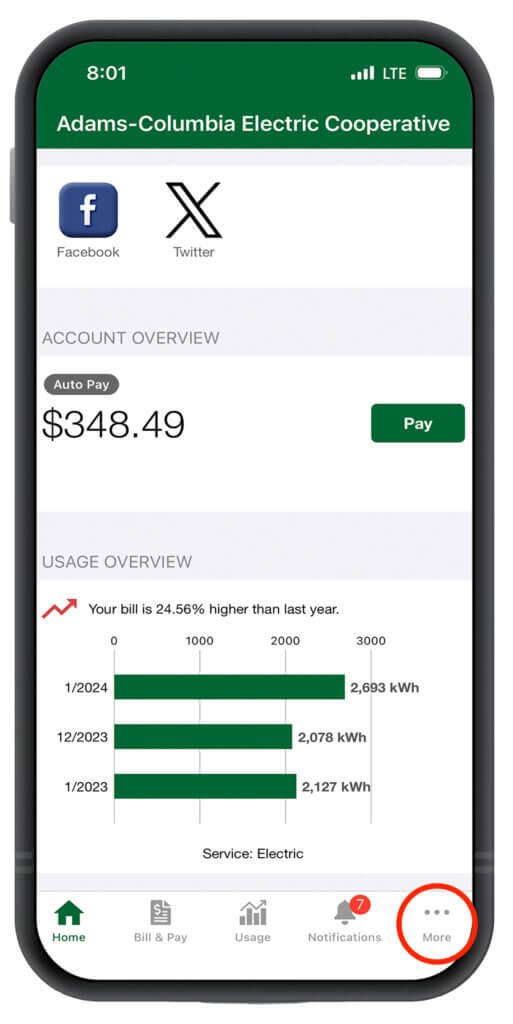
1. Log in to your SmartHub account through the mobile app. Click the More button in the bottom right corner of the screen.
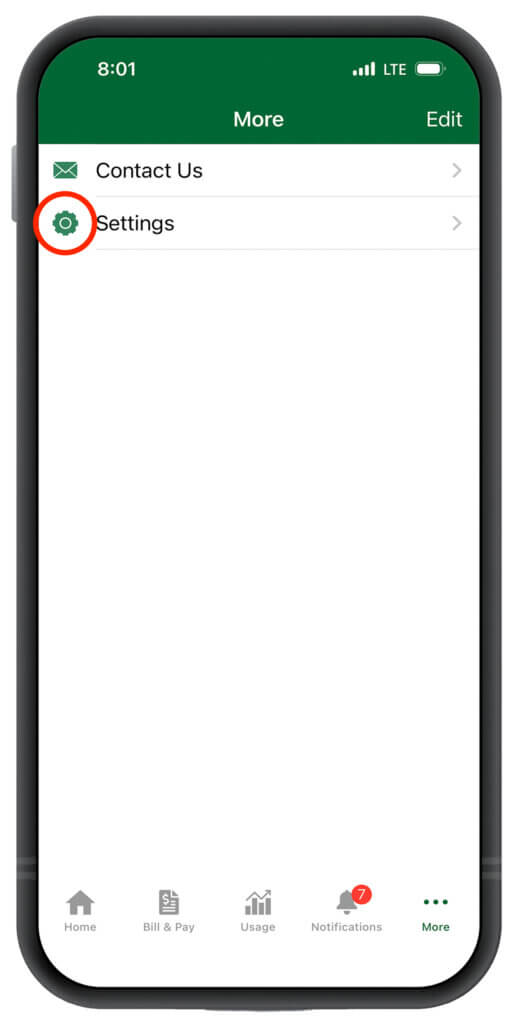
2. Click Settings.
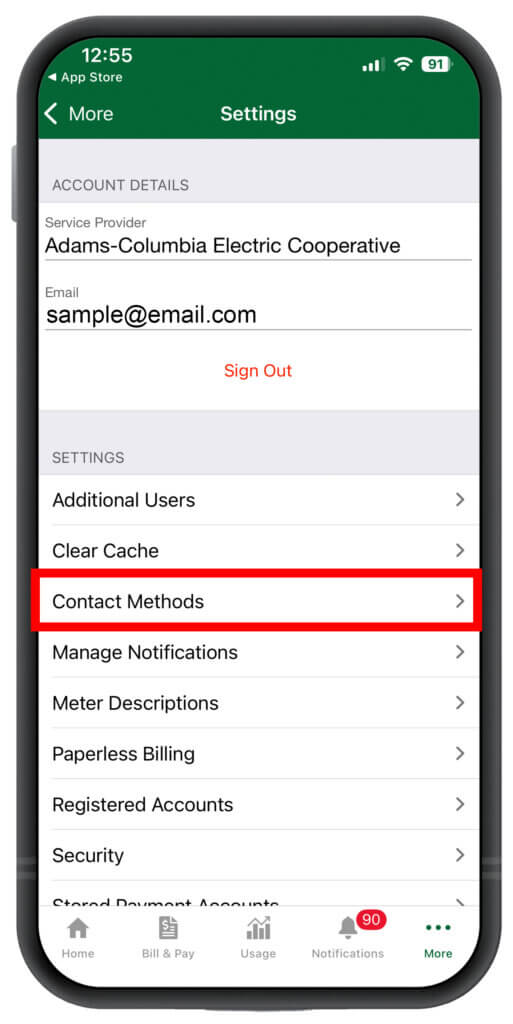
3. Click Contact Methods.
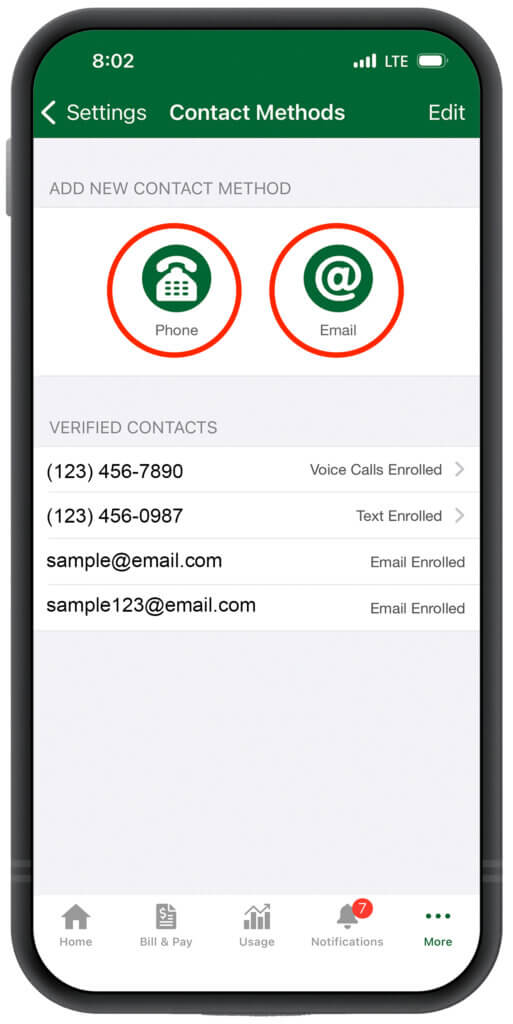
4. Verify the phone and email contacts we have for your account. Click the phone or email icons to add new contacts.
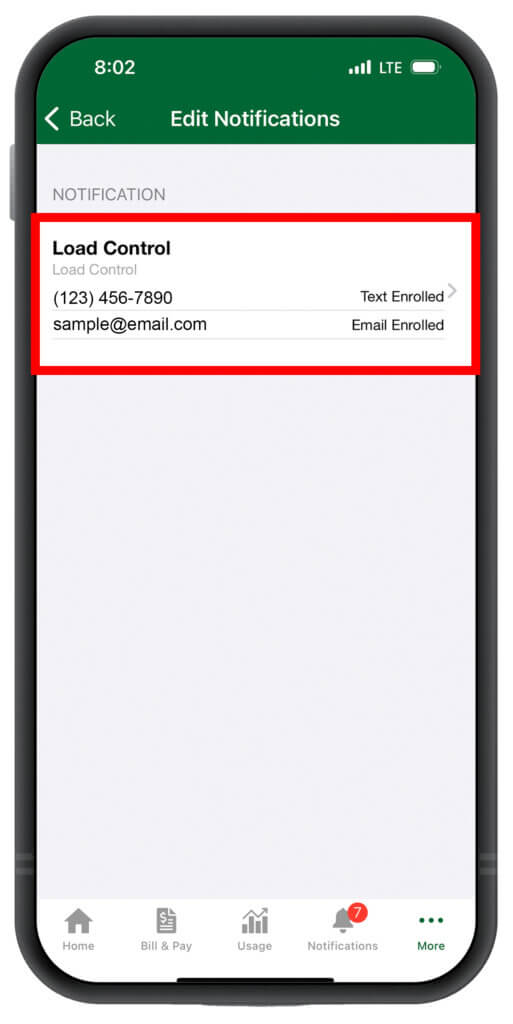
5. After adding and verifying your contacts, go back to Settings and click Manage Notifications. From here, click the notification types to view notifications available.
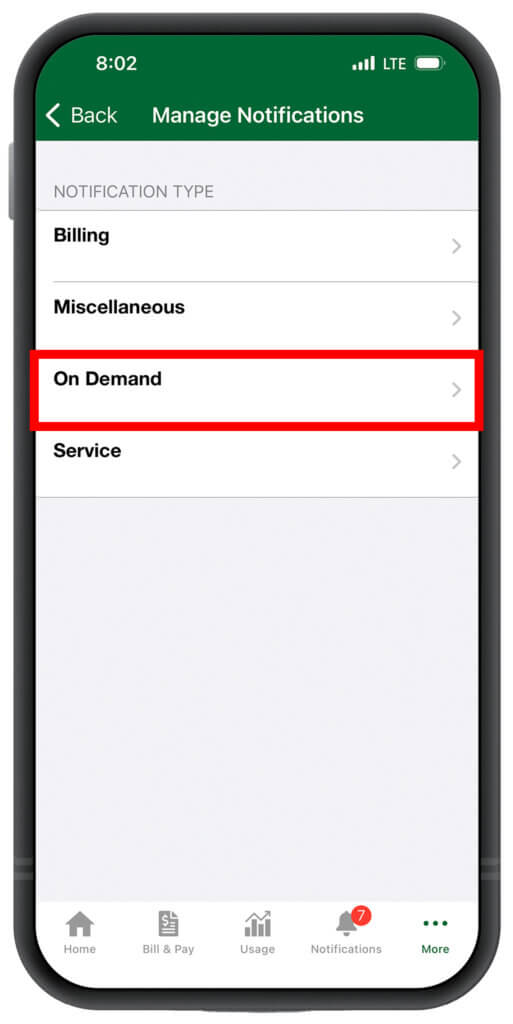
6. To receive peak alerts, go to the On Demand category and choose Load Control. This will show if you have contacts enrolled to receive these messages, and you can enroll more contacts.